Full Description
Project library
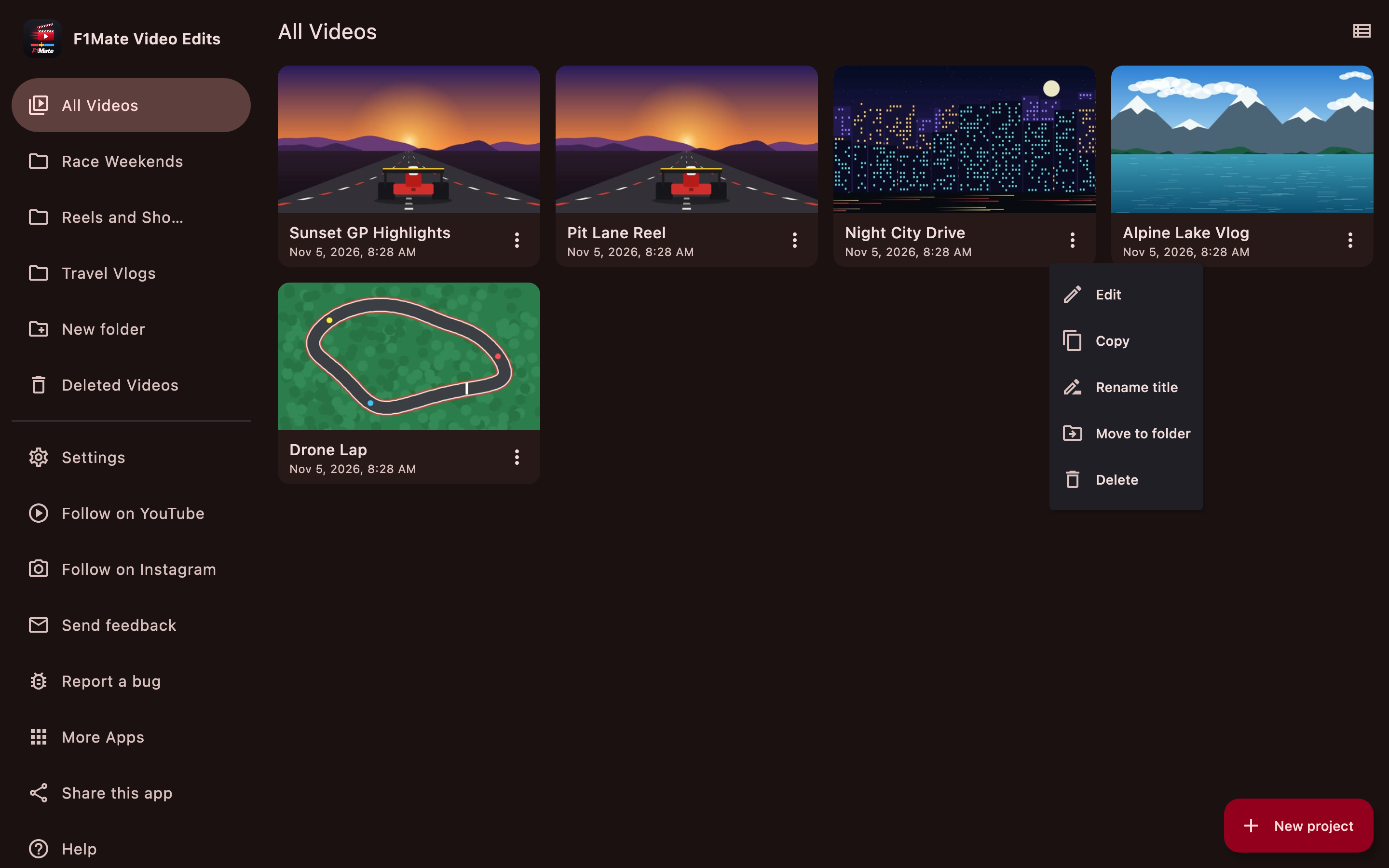
- All Videos lists every live project, including those inside folders
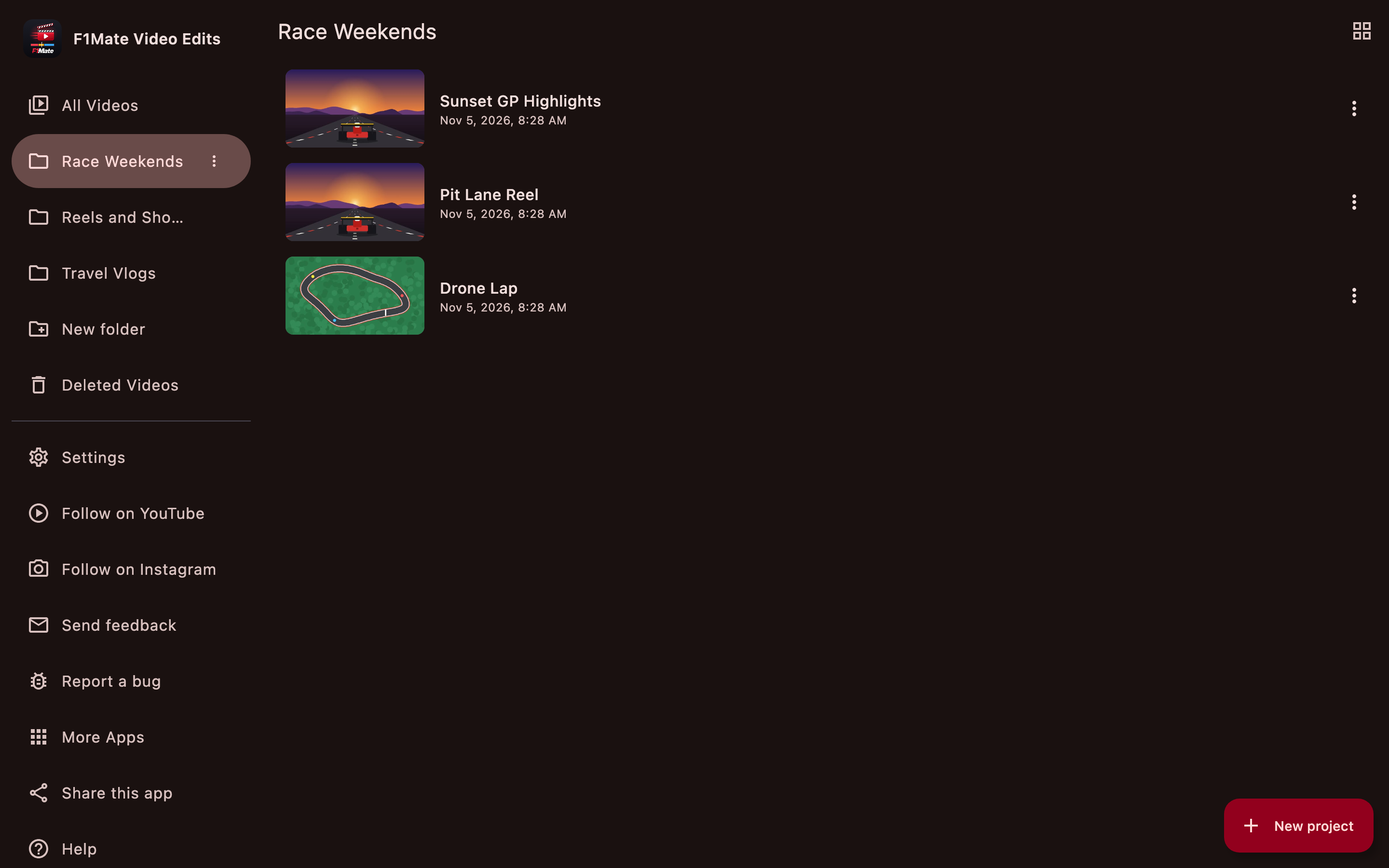
- Grid view and list view; your choice is remembered
- Each project shows a thumbnail, title and last edited date and time, newest first
- Start a project with the New project button, Ctrl/Cmd+N, or by dragging videos and photos onto the library
- Project menu with Edit, Copy, Rename title, Move to folder and Delete
- Copy a project, with its own draft and thumbnail
- Rename with live validation and a 20-character limit
- Keyboard control: click selects, double-click or Enter opens, F2 renames, Delete removes, Esc deselects
- Autosave of every project
Folders
- Create, rename and delete folders
- Move projects between folders
- Open a folder from the sidebar to see only its projects
- Deleting a folder returns its projects to All Videos
Deleted Videos
- Deleted projects go to Deleted Videos, with Undo
- Shows "Deletes in N days" for each project
- Restore, Delete permanently, or Empty trash
- Projects are removed automatically after 30 days
Editor and timeline
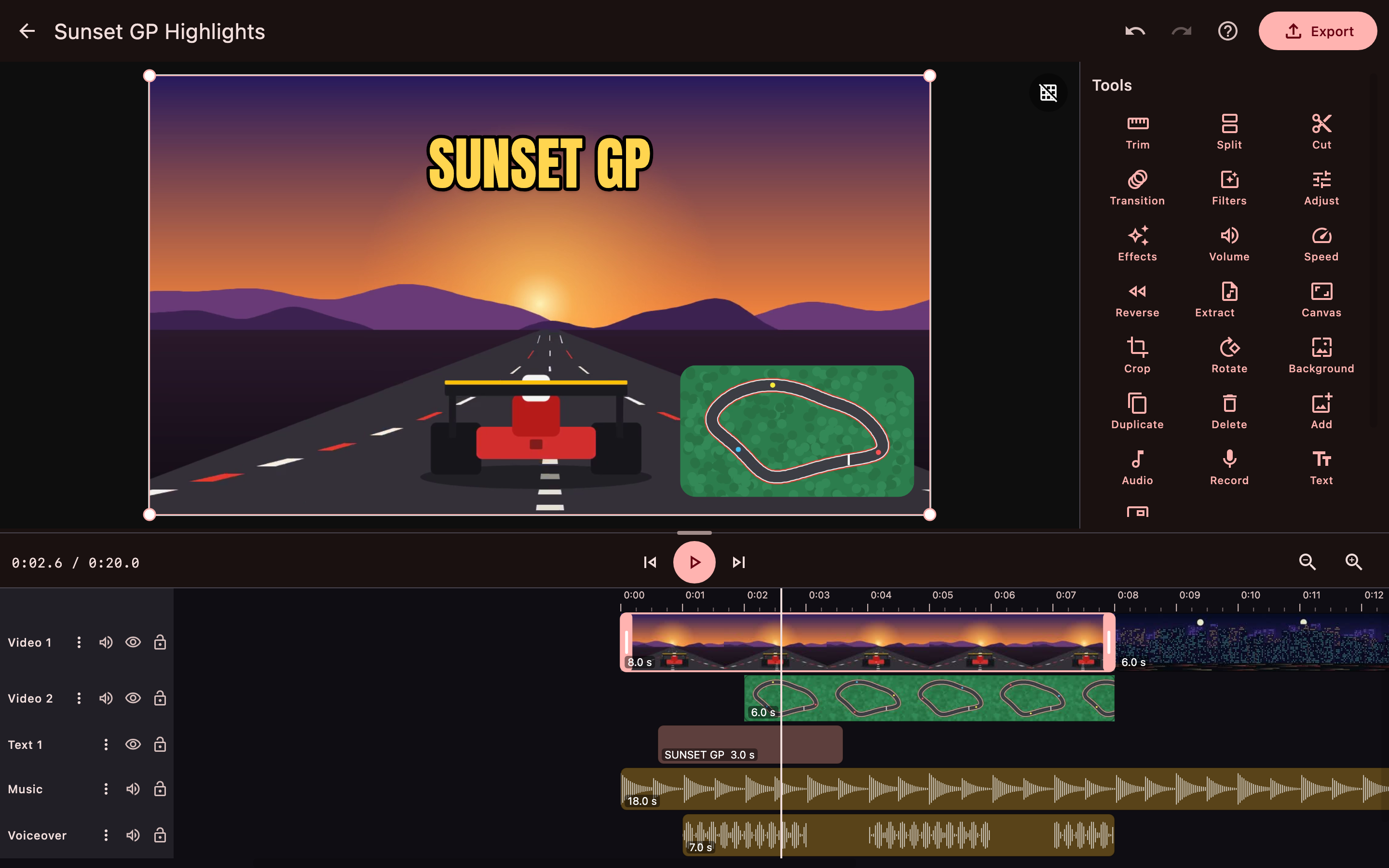
- Video preview, tool panel, playback bar and multi-track timeline on one screen
- Resizable split between preview and timeline; the size is remembered
- Multi-layer timeline: main video, Picture-in-Picture video tracks, text tracks and unlimited audio tracks
- Film strips on video clips and waveforms on audio clips
- Time ruler, centre playhead, timeline zoom and scrollbars
- Mouse wheel and trackpad scrubbing, Ctrl/Cmd+wheel to zoom
- Mute, hide, lock and rename each track
- Drag clips along a track or between tracks; drop below the tracks for a new track
- Reorder main-track clips by dragging, with snapping (Alt turns snapping off)
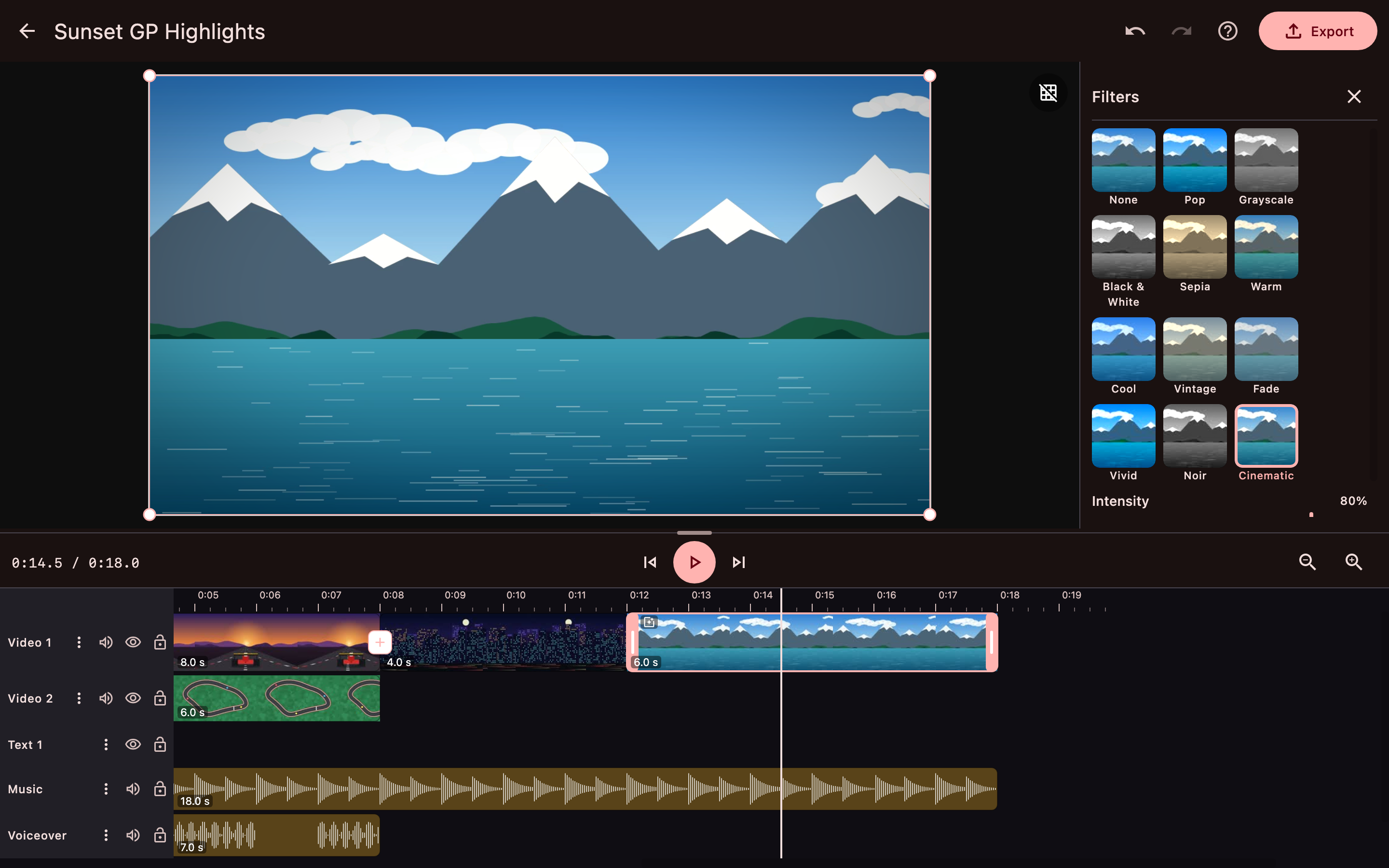
- Timeline badges show which clips have a filter, Adjust or effect
- Undo and redo (100 steps)
- Autosave after every change, on leaving the editor, and on closing or minimising the window
- Add more media with the Add tool, Ctrl/Cmd+I, or drag and drop
- Photos are added as 3-second clips, with their orientation respected
- Missing media is marked on the clip; Relink finds the file again
- Rule-of-thirds grid in the preview
- Preview proxies (720p, 1080p or Original) keep editing smooth
Editing tools
- Trim: drag the clip handles, or enter Start and End times
- Split at the playhead
- Cut: Mark In, Mark Out, then remove that part of the clip
- Duplicate and Delete clips
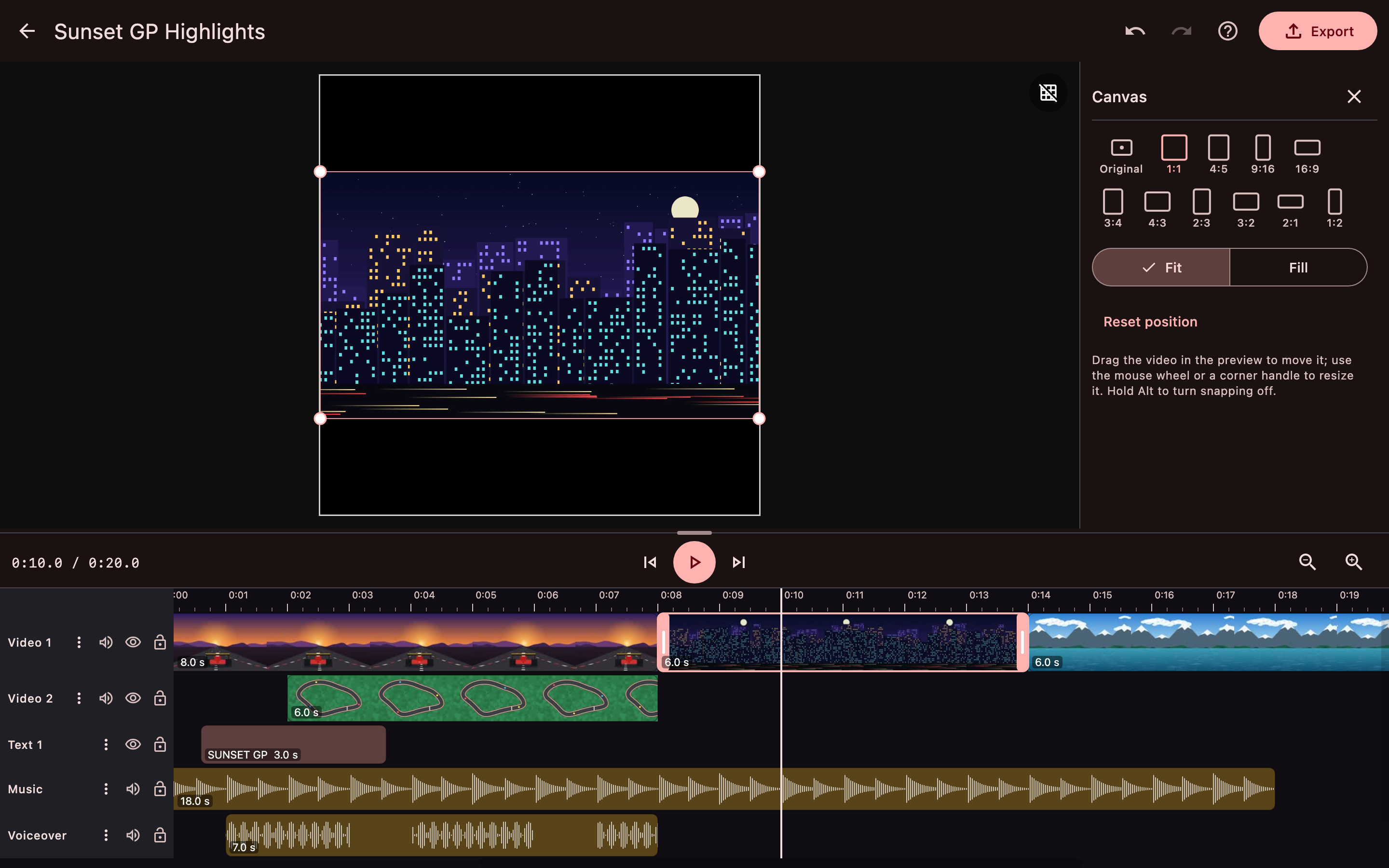
- Canvas: Original plus 10 ratios (1:1, 4:5, 9:16, 16:9, 3:4, 4:3, 2:3, 3:2, 2:1, 1:2)
- Fit or Fill, Reset position
- Move and zoom a clip in the preview, with magnetic snapping and guide lines
- Crop: presets (Full, 1:1, 4:5, 9:16, 16:9, 3:4, 4:3) or a draggable box
- Rotate 90 degrees, Flip horizontal, Flip vertical
- Speed: 0.25x to 4x, presets 0.5x, 1x, 1.5x and 2x, shows the new length, Keep pitch option
- Volume: 0 to 200 percent
- Fade in and fade out, up to 5 seconds each
- Reverse a clip (cached, can be cancelled)
- Extract audio from a video clip to an audio track
Look and visual effects
- 11 filters with live thumbnails and intensity: Pop, Grayscale, Black & White, Sepia, Warm, Cool, Vintage, Fade, Vivid, Noir, Cinematic
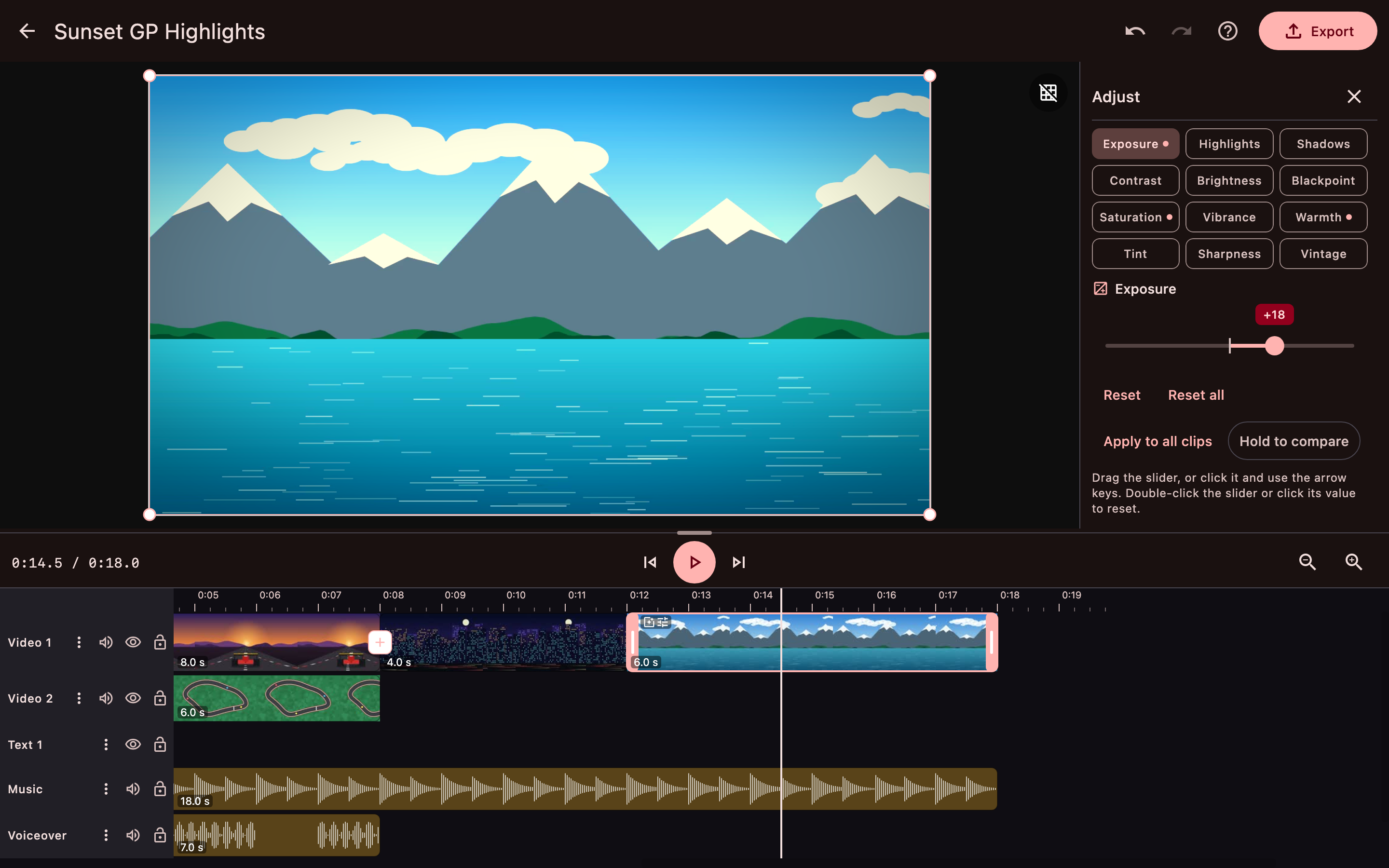
- 12 Adjust sliders: Exposure, Highlights, Shadows, Contrast, Brightness, Blackpoint, Saturation, Vibrance, Warmth, Tint, Sharpness, Vintage
- Adjust options: Reset, Reset all, Apply to all clips, Hold to compare
- 10 motion effects: Slow zoom in, Slow zoom out, Ken Burns, Pan left, Pan right, Shake, Pulse, Blur in, Blur out, Flash
- 9 transitions: Fade, Fade through black, Fade through white, Slide left, Slide right, Slide up, Slide down, Zoom, Wipe
- Transition duration, Apply to all, audio cross-fade
- Backgrounds: Blur with strength, Colour, Image or looping Video; Remove; Apply to all
Text
- Add text with a live preview while typing
- 8 fonts: Sans, Serif, Mono, Anton, Bebas Neue, Lobster, Pacifico, Marker
- Size, colour, background, outline, shadow, alignment and opacity
- Move, resize and rotate in the preview (Shift for 15-degree steps)
- Edit text and Reset position
Picture-in-Picture (overlay)
- Add a video or photo on top of the main video, on its own track
- Opacity
- Rectangle, Rounded or Circle mask
- Move, resize and rotate in the preview (Shift for 15-degree steps)
- Reset position
Audio and voiceover
- Import audio files, by file dialog or drag and drop
- Multiple audio tracks, each Mono or Stereo
- New empty tracks; empty tracks can be removed
- Change a track's type from its menu
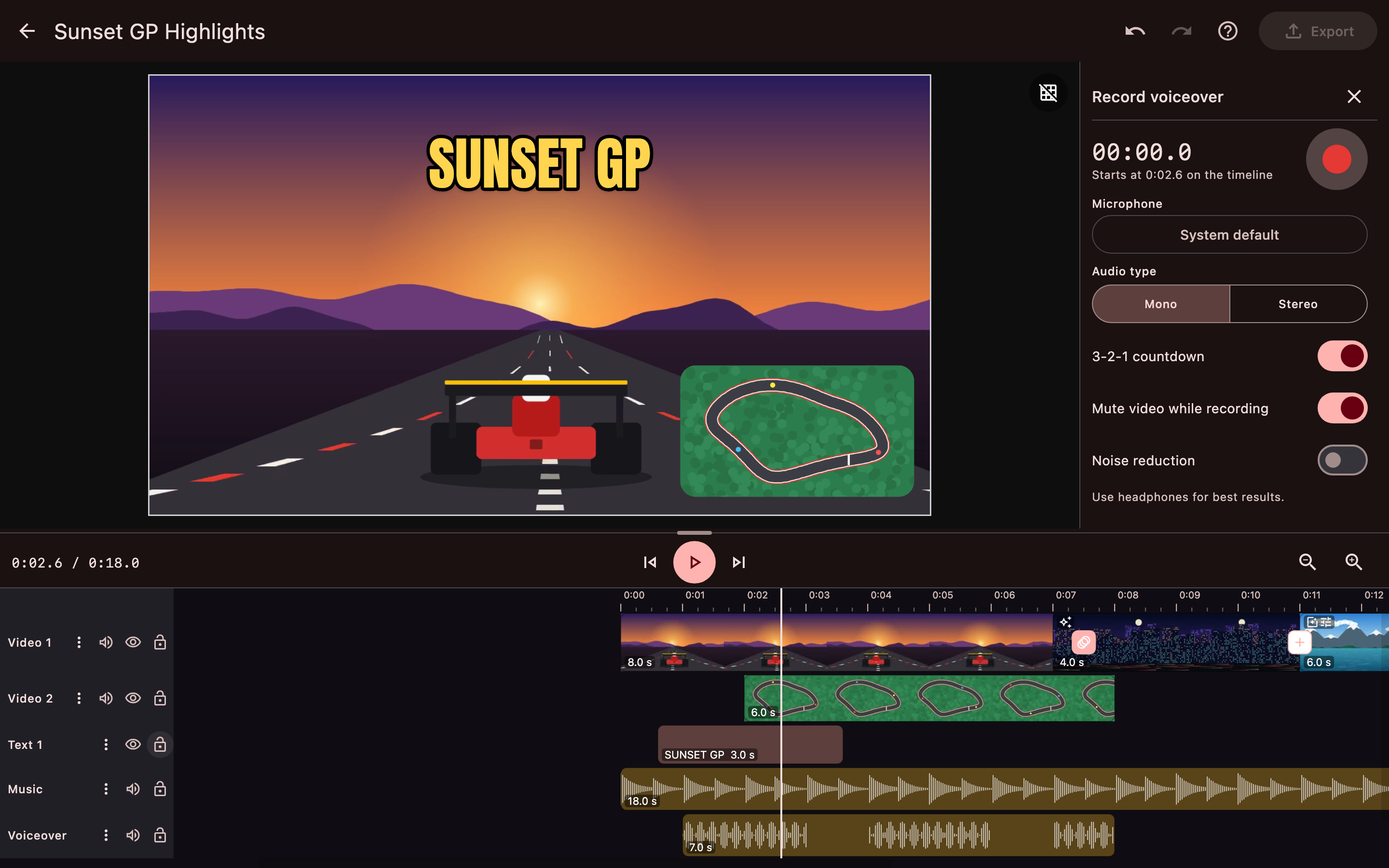
- Record a voiceover to WAV at 48 kHz
- Choose the microphone, and record Mono or Stereo
- 3-2-1 countdown, Mute video while recording, Noise reduction
- Pause while recording; Keep, Retake or Discard the take
Export
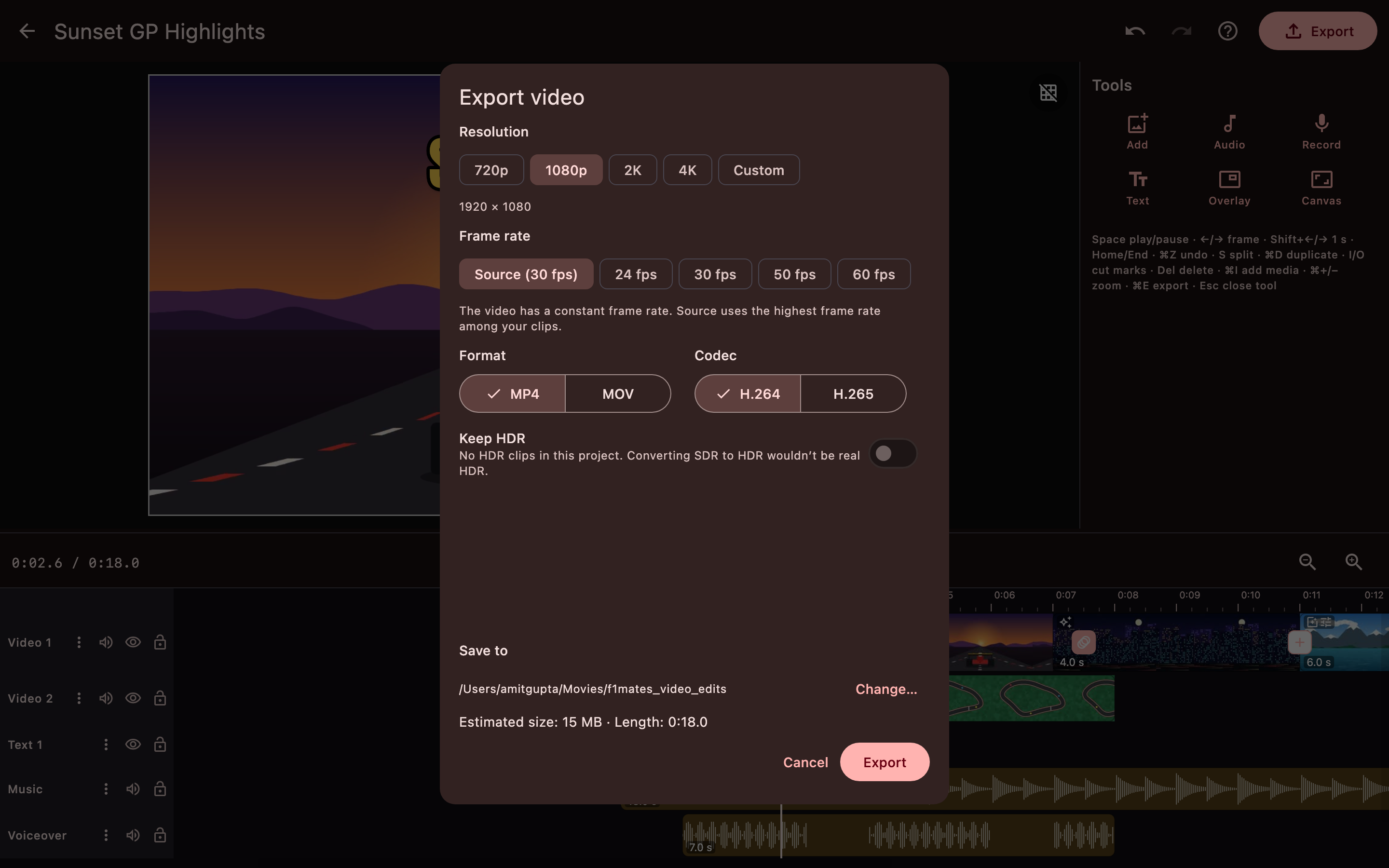
- Resolution: 720p, 1080p, 2K, 4K or Custom
- Frame rate: Source, 24, 30, 50 or 60 fps
- Format: MP4 or MOV
- Codec: H.264 or H.265
- Keep HDR, or tone-map to SDR
- Estimated file size and length; choose the save location
- Progress, time left and Cancel; keep using other apps while it runs
- Done, Show in folder or Play when finished
- Notification when an export ends while the app is in the background
- Default folder: f1mates_video_edits in Movies (macOS) or Videos (Windows)
Settings, help and support
- Settings: preview quality 720p (recommended), 1080p or Original
- Help: full list of keyboard shortcuts, from the sidebar, the editor, or F1
- About: version, developer name and profile link, licence, third-party notices, fonts, FFmpeg status, Test FFmpeg
- Send feedback: opens your email app with app details filled in
- Report a bug: opens your email app with app details and the error log file
- "Report error" appears on failed exports, failed editor actions, a failed FFmpeg test, missing FFmpeg, and after an unexpected error
- Sidebar links: Follow on YouTube, Follow on Instagram, More Apps, Share this app
Desktop
- Light and dark themes that follow the system setting
- Resizable window; size, position and maximised state are remembered
- Native file dialogs
- Drag and drop on the library and the editor
- Keyboard shortcuts use Ctrl on Windows and Cmd on macOS
- Only one copy runs at a time, which protects project files
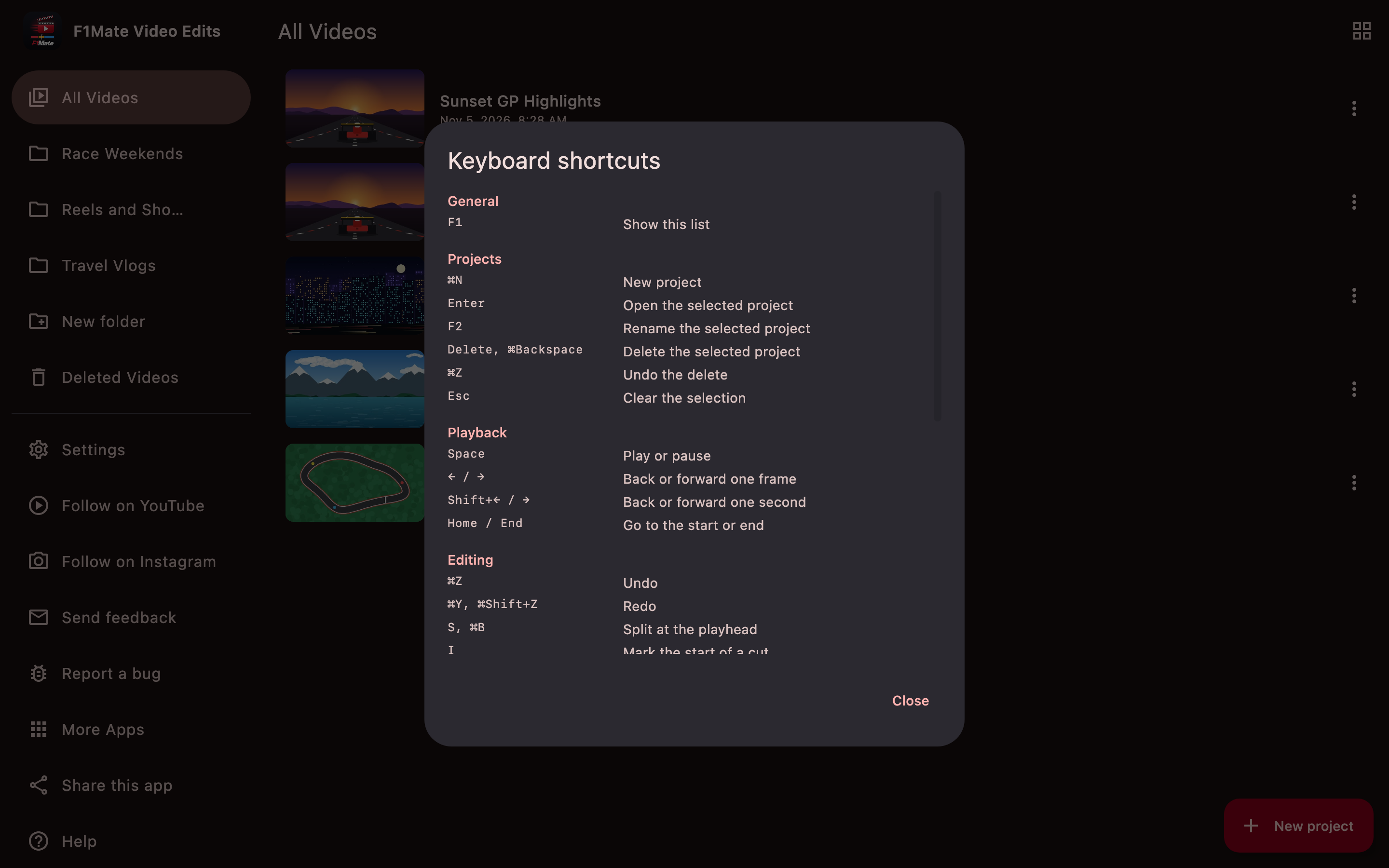
Keyboard shortcuts
Cmd on macOS, Ctrl on Windows.
| General | |
|---|---|
| F1 | Show the shortcuts list |
| Projects | |
| Ctrl/Cmd+N | New project |
| Enter | Open the selected project |
| F2 | Rename the selected project |
| Delete | Delete the selected project |
| Ctrl/Cmd+Z | Undo the delete |
| Esc | Clear the selection |
| Playback | |
| Space | Play or pause |
| Left / Right | Back or forward one frame |
| Shift+Left / Right | Back or forward one second |
| Home / End | Go to the start or end |
| Editing | |
| Ctrl/Cmd+Z | Undo |
| Ctrl/Cmd+Y | Redo (also Ctrl/Cmd+Shift+Z) |
| S or Ctrl/Cmd+B | Split at the playhead |
| I | Mark the start of a cut |
| O | Mark the end of a cut |
| Ctrl/Cmd+D | Duplicate the selected clip |
| Delete | Delete the selected clip |
| Ctrl/Cmd+I | Add media |
| Ctrl/Cmd+E | Export |
| Esc | Close the tool, or clear the selection |
| Timeline | |
| Ctrl/Cmd + plus/minus | Zoom the timeline in or out |
| Ctrl/Cmd+Wheel | Zoom the timeline in or out |
| Wheel | Scroll through the tracks, or along the time if they all fit |
| Shift+Wheel | Move along the time |
| Text, preview and sliders | |
| Ctrl/Cmd+Enter | Finish entering text |
| Esc | Cancel entering text |
| Shift | Hold while rotating to snap to 15-degree steps |
| Left / Right | Change the selected slider by 1 |
| Shift+Left / Right | Change the selected slider by 5 |
| 0 | Reset the selected slider to 0 |